Enjoy 10% OFF your next purchase with "SAVE10"
About the Author: The CheatService performance team has analyzed shooter engines for optimal framerates and minimal input lag since the early days of tactical extractions. With a focus on competitive viability, our configurations are trusted by thousands of FPS enthusiasts worldwide. Last reviewed: June 15, 2026.
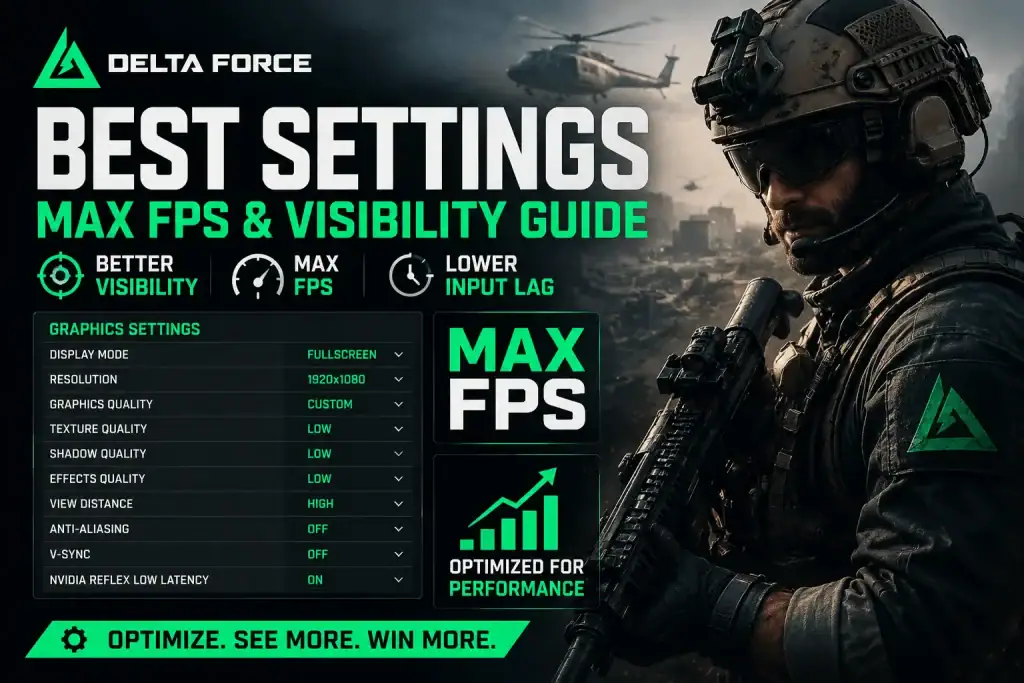
Finding the right balance between visual clarity and raw frame rate is the primary challenge in competitive shooters. The default configurations often prioritize cinematic visual appeal over responsiveness, which introduces input lag and frame drops during intense firefights. Applying the delta force best settings ensures your hardware allocates resources toward rendering enemy models and maintaining smooth tracking rather than processing unnecessary environmental details.
⚡ TL;DR — Performance Best Practices
Your baseline display settings dictate how the game communicates with your monitor. Incorrect configurations here will bottleneck your system before graphics rendering even begins.
Always force the game into Fullscreen mode. Match your Display Refresh Rate exactly to your monitor's maximum capability. Leaving this on Auto can sometimes default to 60Hz, severely handicapping players on high refresh rate monitors. Keep the Frame Rate Cap set to Unlimited to allow your system to push frames as fast as possible.
If your system struggles to maintain your monitor’s refresh rate, utilize the Super Resolution options. Nvidia users should select DLSS and set the Super Resolution to Balanced or Quality. This renders the game at a lower internal resolution and upscales it, providing a massive frame boost without severe image degradation. AMD users will use FSR on the Performance setting.
The graphics menu is where you will reclaim the most performance. Delta Force relies heavily on lighting and shadow computations that can quickly overwhelm your VRAM if left unchecked. Start by setting the Graphics Preset to Custom to unlock individual sliders.
| Setting Name | Recommended Value | Mechanical Impact |
|---|---|---|
| Weapon Motion Blur | Off | Prevents pixel smearing during fast horizontal mouse swipes, maintaining target clarity. |
| Volumetric Fog | Low | Eliminates severe frame drops caused by the GPU rendering light through dynamic weather and smoke. |
| Shadow Maps | Low | Reduces the resolution of shadow edges, freeing up massive amounts of processing power. |
| Texture Filtering | High | Keeps enemy models sharply defined against terrain. Only use High if you have at least 8GB of VRAM. |
Note: Always enable Nvidia Reflex if you have a compatible GPU. This technology bypasses the render queue, allowing your CPU to send instructions directly to the GPU for a measurable reduction in system latency.
Your physical perspective and aiming mechanics require precise calibration. The default FOV is often too narrow, limiting your peripheral vision and making visual recoil feel more aggressive. Increase your Default FOV to 120. Keep Scope Magnification turned On so the game maintains your wider perspective while aiming down sights, ensuring visual muscle memory remains consistent.
Set your Hip-Fire Aim Sensitivity Type to MDV only. Set your Monitor Distance Coefficient to 1.33, which is the mathematical standard for 16:9 displays. If you are migrating your muscle memory from another shooter, use our free Sensitivity & FOV Converter to translate your exact values over.
If you are looking for external tactical tools to further modify your core gameplay loop, ensure your baseline sensitivity and FOV are fully locked in first.
Delta Force features a tactical extraction mode that requires fast looting under pressure. The default inventory management settings can slow you down, leaving you vulnerable while staring at a loot screen.
Navigate to your system settings and enable "Put High-Value Items in the Safebox First." Set the Value Threshold for this setting to 10000. When you quick-loot a high-tier item, the game will automatically route it to your secure container, ensuring you keep the profit even if you are eliminated. Turn "Auto-Sort When Opening Stash" off to prevent frustrating misclicks caused by items shifting around automatically.
Stuttering is usually caused by VRAM limitations or background rendering conflicts. Lower your Texture Quality if your GPU has less than 8GB of VRAM. Ensure your game is running in Fullscreen mode, and turn Volumetric Fog and Shadow Maps down to Low.
If you have an Nvidia RTX graphics card, DLSS provides superior visual clarity with less ghosting compared to FSR. Use DLSS on Quality or Balanced. Only use FSR if you are running an AMD GPU or an older GTX series card that does not support DLSS natively.
Input delay is primarily tied to V-Sync and framerate caps. Turn V-Sync off immediately. Enable Nvidia Reflex if your hardware supports it, and verify that your Display Refresh Rate in the settings matches your monitor’s actual maximum output.
Share it on:
