Enjoy 10% OFF your next purchase with "SAVE10"
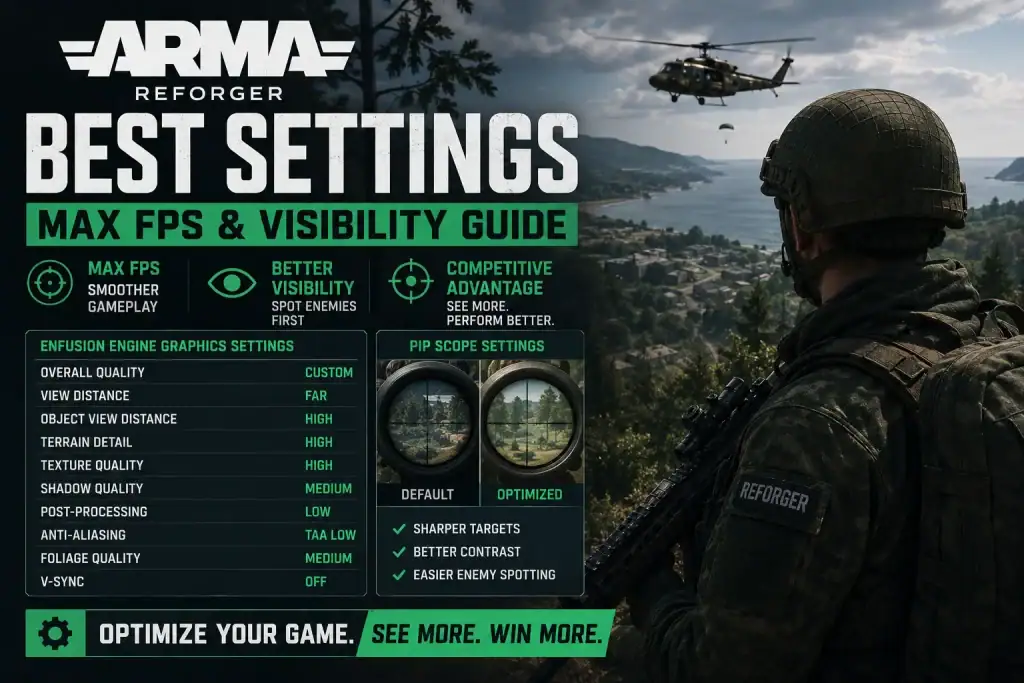
About the Author: The CheatService performance team continuously tests the Enfusion engine across multiple hardware configurations to find the perfect balance between stable framerates and tactical clarity. Last reviewed: June 2026.
To maximize FPS and visibility in Arma Reforger, turn off Hardware Anti-Aliasing, drop Grass Quality to Lowest, and cap Grass Draw Distance at 100 meters. Because the Enfusion engine heavily taxes your GPU with dense environmental rendering, lowering Environment Quality to Low instantly recovers frames lost to volumetric clouds and weather effects. Keep your Texture Detail and Texture Filtering on High to ensure enemy models remain sharply defined against the terrain during long-range engagements.
⚡ TL;DR — Arma Reforger Performance Baseline
Your baseline display settings dictate how efficiently the Enfusion engine communicates with your hardware. Incorrect scaling configurations here will introduce input latency and cap your maximum performance before you even deploy.
Run the game in Borderless Fullscreen. This mode offers the most stable frame pacing for Arma Reforger while allowing smooth alt-tabbing. Keep your Render Scale at exactly 100%. If your graphics card struggles to maintain a playable framerate, enable FidelityFX Super Resolution 1.0 (FSR) on the Quality preset to upscale your internal resolution dynamically.
Disable V-Sync and uncap your FPS Limit. Capping framerates in this engine often introduces micro-stutters during heavy artillery fire or helicopter insertions. If you are still experiencing severe hardware hitches after adjusting your display baseline, refer to our guide to fixing Arma Reforger crashing and FPS drops for deeper Windows-level optimizations.
The graphics menu is where you separate competitive visibility from unnecessary cinematic flair. Arma Reforger renders massive islands with thousands of interactive objects, which can quickly overwhelm your VRAM. Change the Quality Preset to Custom to unlock individual parameter controls.
| Setting Name | Recommended Value | Mechanical Impact |
|---|---|---|
| Hardware Anti-Aliasing | Off | Consumes massive resources for minimal visual gain. Rely on Post-Processing AA instead. |
| Post-Processing AA | SMAA High | Smooths jagged edges on foliage and buildings without the severe performance hit of hardware MSAA. |
| Shadow Quality | Low | Reduces the processing power required to render complex shadows in forests and urban areas. |
| Distant Shadows | None | Stops the engine from rendering shadows for objects outside of your immediate engagement zone. |
| Model Geometry Detail | Medium | Keeps vehicle and character models identifiable at long range while saving polygon rendering costs. |
Note: Always set Nearby Depth of Field and Depth of Field Quality to Off/None. Blurring your peripheral vision artificially handicaps your situational awareness during close-quarters combat.
Arma Reforger uses Picture-in-Picture (PiP) rendering for magnified optics. This means the game essentially renders the entire world a second time when you aim down your sights, causing severe frame drops on unoptimized setups.
Navigate to your Gameplay settings tab and scroll down to ADS Focus Intensity. Drop this value to 25%. This prevents the optic housing from dominating your screen, preserving your peripheral vision while zoomed in. If PiP scopes still drop your framerate drastically, you can disable 3D optics entirely in the Video settings and use standard 2D Scopes instead to guarantee stable performance during firefights.
Locking in a consistent framerate is only half the battle; tracking moving targets requires precise mechanical inputs. Match your optimized framerates with our recommended Arma Reforger sensitivity and aim settings to secure your muscle memory. If you want to expand your tactical awareness on the server side, explore our verified Arma Reforger hacks for advanced spatial tracking and target acquisition.
Forest areas force the engine to render thousands of individual grass blades and overlapping shadows. Lowering your Grass Draw Distance to 100 meters and turning Distant Shadows to None stops your GPU from processing dense foliage you cannot interact with, stabilizing your framerate immediately.
Always use Post-Processing AA (specifically SMAA High) in Arma Reforger. Hardware Anti-Aliasing applies a brute-force MSAA rendering pass that cripples modern GPUs in this engine. Post-processing achieves nearly identical visual clarity at a fraction of the computational cost.
Environment Quality primarily dictates the resolution of the game's volumetric clouds and dynamic weather systems. Leaving this on High during a severe server weather event will cause massive stuttering. Setting it to Low reclaims up to 15 FPS without noticeably degrading the skybox.
Share it on:
